ClipShare Browser Extension for Chrome and Edge
Select text on a webpage, doc, or AI chat, right-click to create a link, QR code, or share code, and open it on another device — no account needed.
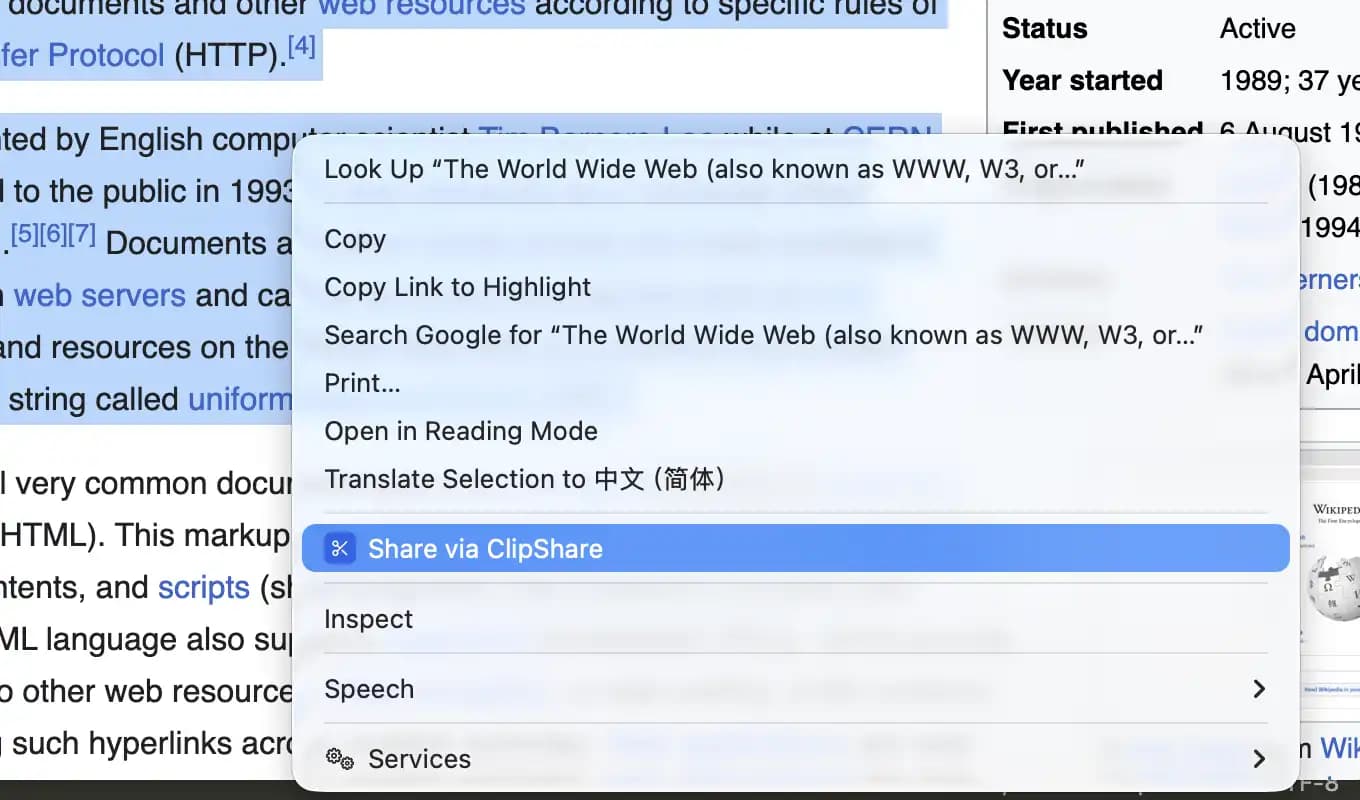
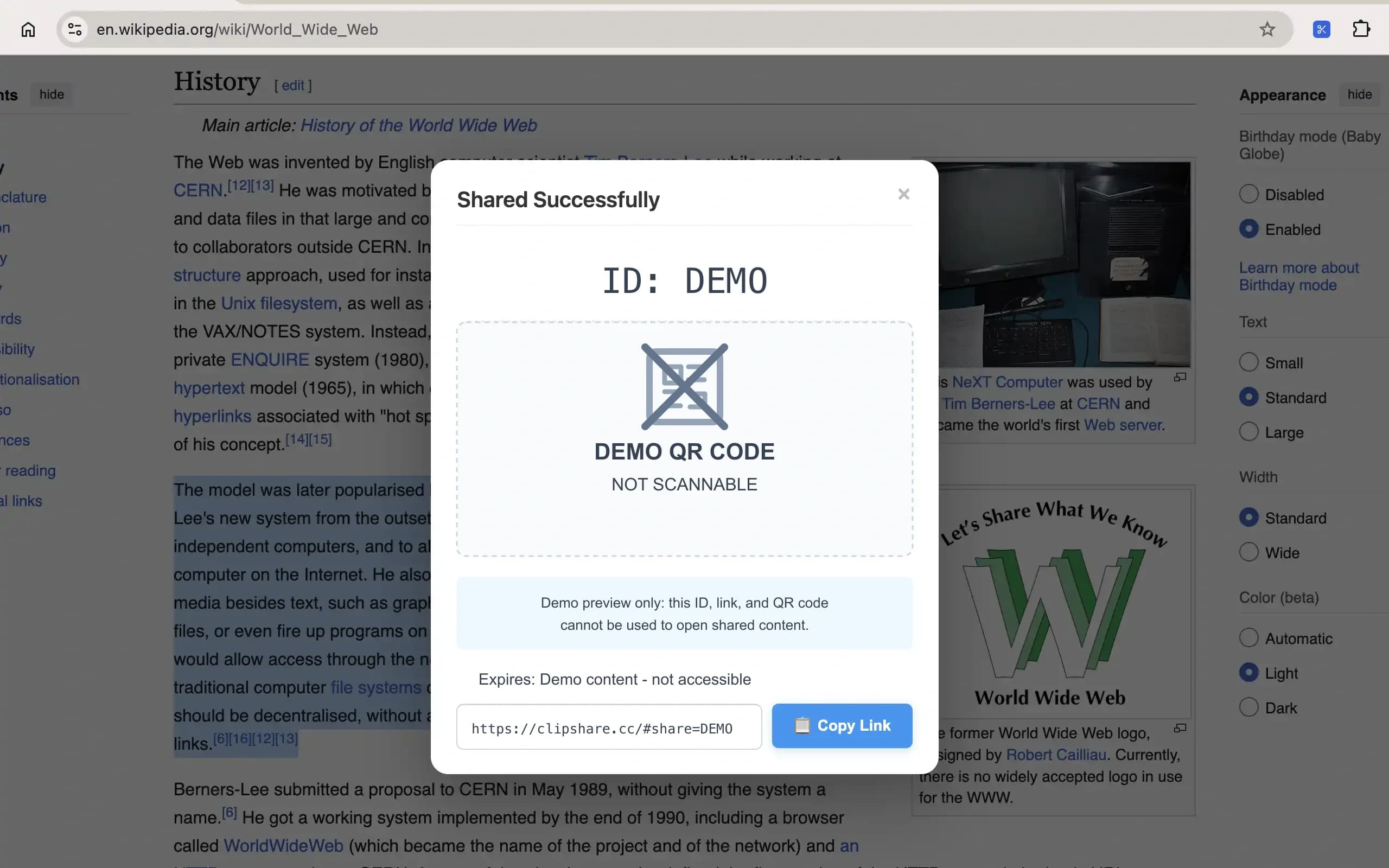
How to Use
The extension is best when the content already lives on a webpage and you want to move only a selected part of it to another device.
Select text on a webpage
Right-click and select "Share to ClipShare"
On another device, open the link, scan the QR code, or enter the share code on the ClipShare website
Install the Extension
Choose your browser and start sharing selected text from webpages or AI chats in seconds.
Use Cases
This extension works best when you are browsing a webpage and want to send selected page content to another device right away:
While reading articles, tutorials, or forum threads, send key paragraphs to your phone for later
While chatting with AI, send a useful answer, summary, or prompt to another device for immediate use
On docs sites or GitHub, send selected code snippets or commands to another computer instantly
During research or price comparison, send product names, prices, and specs from webpages to yourself or teammates
Privacy Notice
The extension sends the selected text to ClipShare only after you choose the sharing command.
The selected text becomes temporarily available through the generated link, QR code, and share code.
Normal extension shares stop being available about 10 minutes after creation.
According to the current extension disclosure, it does not:
When the extension is the better choice
- You are reading docs, GitHub, a forum thread, or an AI chat and only need a few lines.
- You want to avoid the copy → switch tab → paste → share loop.
- You want to send text quickly without opening the full website workflow first.
When the website is still better
The browser extension is focused on selected text. For broader sharing tasks, the website is still the better route.
- Use the website when you need to share images, screenshots, or small files.
- Use the website when you want to manage local drafts before sharing.
- Use the website when you want a more explicit input area and a full-page workflow.
Common extension-side issues
If the extension does not behave as expected, these checks usually help first.
Refresh the page after installation if the context menu does not appear.
Some websites or browser states may restrict selection or clipboard-related behavior.
Other extensions may inject scripts and cause JavaScript conflicts. If something seems broken, test in an incognito window or a cleaner browser profile.
What the extension is not designed for
- It is not a page saver or long-term bookmark tool.
- It is not meant to capture entire complex webpages exactly as they look.
- It is not ideal for highly sensitive information that should stay out of browser extension workflows.
Separate Snap extension
Install ClipShare Snap for one-view private text
The regular ClipShare extension is for selected webpage text and 10-minute temporary sharing. ClipShare Snap is a separate Chrome / Edge extension for text that should be opened once, stay readable briefly, and then become unavailable.
- Create one-view Snap links from the extension popup.
- Use it for temporary passwords, private notes, and short sensitive text.
- A Snap can be revealed once and remains visible for 60 seconds; afterward, the same link cannot show it again.
Install the Snap extension for the browser you use most.