Share Files Between Devices Without Login
Share text, images, and small files between phone and computer without login or installation. Use a temporary link, share code, or QR code in the browser.
In this guide
Sharing files between devices should feel simple.
You should not need to install an app just to move one file.
You should not need to create an account just to send one image.
And you should not need to wait for cloud sync just to move one temporary document.
If all you want to do is move text, images, or small files between your phone, tablet, and computer, there is a lighter way.
This guide answers a very specific question:
How do you share files between devices without login, without extra installs, and without leaving behind unnecessary long-term storage?
The short answer:
Use a browser-based temporary sharing tool. Add the content on one device, then open it on the other with a short code, link, or QR code.
What does “share files between devices” actually mean?
At the simplest level, it just means moving something from A to B.
For example:
- phone -> laptop
- laptop -> phone
- tablet -> desktop
- Windows -> Mac
- Android -> iPhone
The content is usually something like:
- text or notes
- screenshots or images
- PDFs or documents
- small archives
- configuration files or temporary drafts
The real goal is usually not “store this forever.”
It is:
I need this on my other device right now.
Why do traditional methods feel heavier than they should?
Before lightweight browser tools became common, most people used one of these:
Email attachments
- requires login
- size limits
- adds inbox clutter
- feels too formal for temporary transfer
Cloud storage
- requires an account
- keeps files around until you delete them
- adds sync and cleanup overhead
Messaging apps
- can compress images
- mix files into chat history
- blend work and personal communication
- are not ideal on public or managed devices
All of these can work.
The issue is that they were designed for communication or storage, not for quick cross-device relay.
A lighter approach: instant browser-based sharing
Modern browser tools let you:
- upload text, images, or small files
- generate a temporary share code, QR code, or link
- open the content immediately on another device
- let it expire automatically after a short time
No login.
No sync setup.
No installation.
Tools like ClipShare are designed around this lightweight workflow.
They are not trying to become your long-term file library.
They are trying to make temporary transfer cleaner.
When does this workflow feel especially good?
1. Moving text, screenshots, or documents between phone and computer
This is the most common case.
For example:
- placing a screenshot from your phone into a desktop presentation
- opening a short document from your computer on your phone
- moving a block of text to another device for editing
2. Sharing between work devices and personal devices
In many workplaces, you do not want to:
- sign into your personal chat accounts
- sign into your cloud account
- leave your personal access on a managed machine
That is where temporary browser-based sharing becomes much more attractive.
3. Working across mixed operating systems
For example:
- Windows ↔ iPhone
- Android ↔ Mac
- phone ↔ tablet
If both devices can open a browser, ecosystem mismatch matters much less.
4. The file only matters once
If the file is only useful for ten minutes, it probably does not belong in:
- long-term cloud storage
- permanent chat history
- a system you will need to clean up later
Phone to computer and computer to phone examples
Most cross-device transfers are really one of two paths.
Phone to computer
Use this path when you have something on your phone and need it on a larger screen:
- Android photo to Mac
- iPhone screenshot to Windows
- verification code from phone to laptop
- link from mobile browser to desktop browser
- PDF or small document from phone to work computer
For iPhone and Windows workflows, see iPhone to Windows Transfer. For Android and Mac workflows, see Android to Mac File Transfer: Five Practical Options.
Computer to phone
Use this path when the content starts on desktop:
- address or map link from computer to phone
- document preview from laptop to phone
- code snippet or AI answer from desktop to mobile
- small file from work computer to personal phone
If the content is mostly text, How to Share Text Between a Phone and Computer is the more specific guide.
What is the simplest cross-device sharing workflow?
In practice, it usually looks like this:
- Open the sharing tool in your browser
- Upload the file or paste the content
- Get a share code, QR code, or link
- Open it on the second device
- Download, view, or copy the content
That is usually enough.
If you want the more specific “no-login temporary transfer” version of this workflow, also read Temporary File Sharing Without Login: Fast Cross-Device File Transfer.
Test results: what we verified before updating this guide
We tested the current production flow in Google Chrome on July 26, 2026, using synthetic, non-sensitive data:
- a 92-character Markdown and JavaScript sample generated a 4-character code, QR code, and share link
- the exact text was retrieved in a clean browser context
- a 188-byte
.txtfile was shared and appeared on the receiving side with the same file name and size - the service reported 600 and 599 seconds of remaining availability for the two new shares
- a 5,242,881-byte file—one byte over 5 MB—was rejected before sharing, and the share button stayed disabled
These checks confirm the tested production path at that point in time. They do not promise uninterrupted availability, end-to-end encryption, support for files over 5 MB, or permission to move data that belongs to an employer or customer.
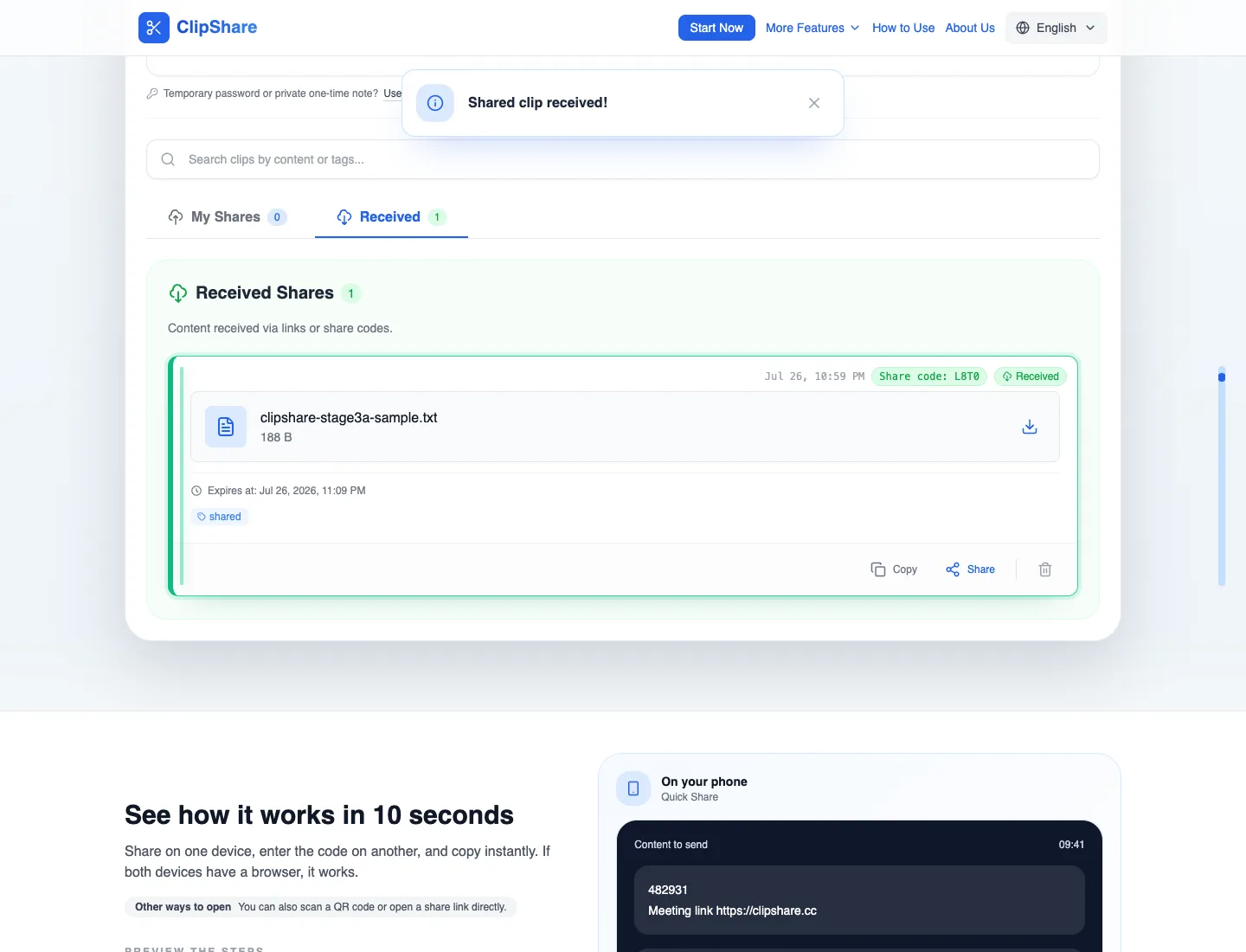
Receiving-side result: the synthetic file name and 188-byte size are visible.
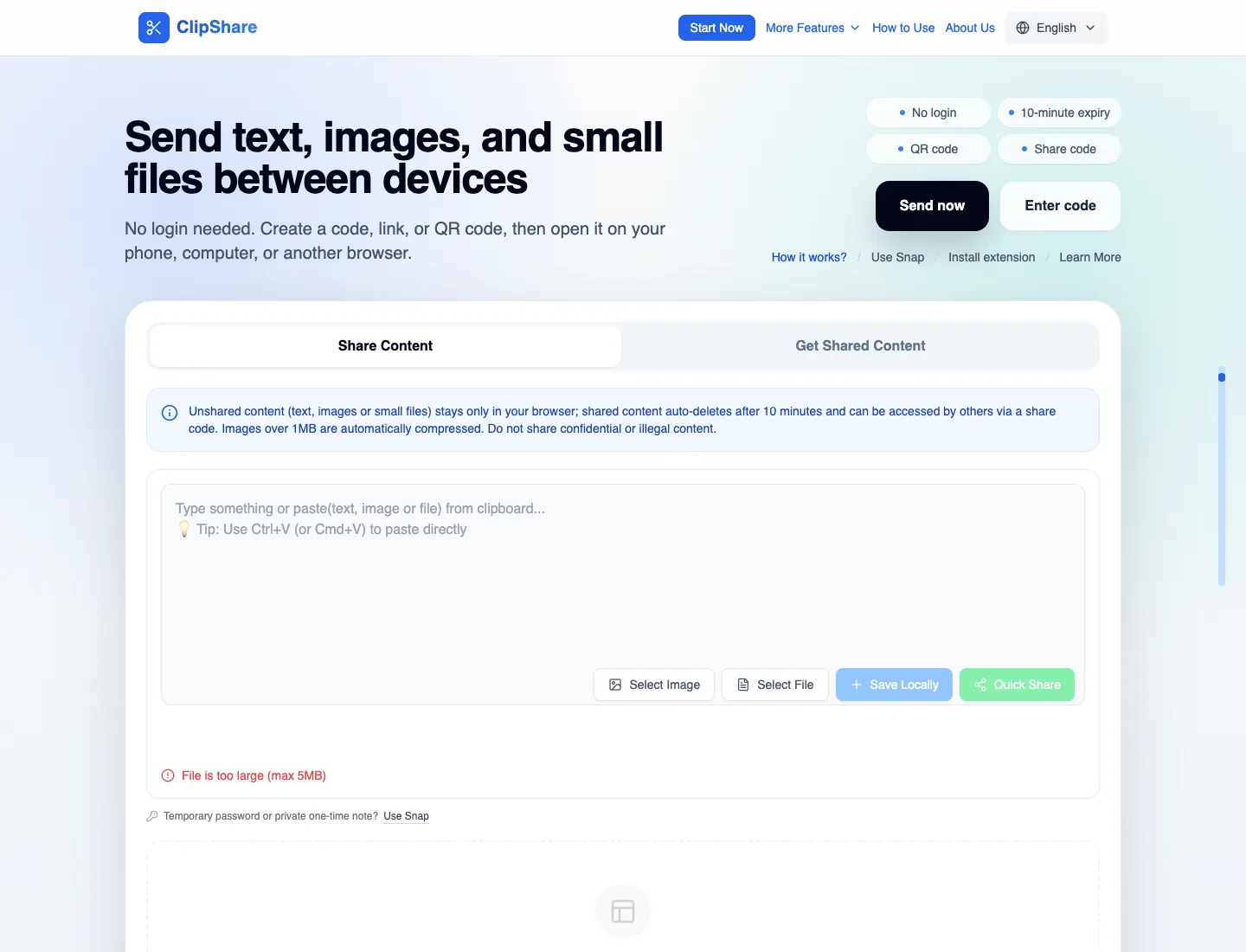
Boundary result: a file one byte over 5 MB is rejected before a share is created.
Production verification performed with disposable test content on July 26, 2026. The pictured share code had already expired by the time this guide was published.
How does this compare with AirDrop or LocalSend?
AirDrop, LocalSend, Snapdrop-style tools, and browser-based sharing all solve nearby transfer friction, but they fit different situations.
AirDrop is excellent inside the Apple ecosystem, but it does not solve iPhone to Windows PC or Android to Mac transfer. If that is your specific problem, read AirDrop Alternative for iPhone to Windows, Android to Mac/Windows.
LocalSend and similar tools can be great when you control both devices and can install or open the same tool on each one. Browser-based sharing is lighter when the second device is temporary, managed, shared, or not yours.
If both devices are supported Windows PCs and are nearby, also compare Windows Nearby Sharing in Microsoft’s official guide. It uses Bluetooth or Wi-Fi and may be the better choice when you want a local Windows-to-Windows workflow.
Use a browser-based workflow when you care most about:
- no account login
- no app installation
- quick transfer between mixed devices
- text, images, and small files that only matter once
How should you think about text, images, and small files?
Sharing text between devices
Great for:
- notes
- links
- short summaries
- code snippets
If this is your main use case, see How to Share Text Between a Phone and Computer.
Sharing images between devices
Great for:
- screenshots
- design previews
- temporary photos
- QR codes
If this is your main use case, see How to Send Photos from a Phone to a Computer Without a Cable.
Sharing small files between devices
Great for:
- PDFs
- short Word or Excel files
- small ZIP files
- configuration files
- temporary drafts
If you want a more specific lightweight file-transfer angle, also read ClipShare Now Supports Small File Sharing.
Why are QR codes especially useful in this workflow?
Because many cross-device transfers are not hard because of upload.
They are hard because the second device still needs to enter the access point.
QR codes reduce that problem to:
scan and open
That is particularly useful when:
- the two devices are near each other
- you do not want to type a long link
- you are sharing in person
For the full QR-specific workflow, read How to Transfer Files Using QR Code (Fast & No App Required).
How is instant sharing different from cloud storage?
| Feature | Instant sharing | Cloud storage |
|---|---|---|
| Login required | No | Yes |
| Speed | Fast | Moderate |
| Content lifetime | Short-lived | Long-term |
| Best use | Temporary transfer | Long-term backup |
| Cleanup burden | Low | Higher |
Both approaches are useful.
But if your goal is:
- speed
- simplicity
- no login
- no long-term storage
instant sharing usually matches the task better.
What about safety?
Safety depends on both the implementation and the content.
Before using any tool, check things like:
- HTTPS encryption
- automatic expiration
- a clear privacy policy
- limited retention
For ordinary, low-sensitivity text, screenshots, and lightweight documents, a temporary tool may fit the task after you have checked its limits and privacy terms. Short retention reduces leftover data; it does not make every file appropriate to upload.
But if the content includes:
- highly sensitive personal information
- customer-confidential files
- financial or legal documents
- passwords, private keys, or recovery codes
then convenience should not lower your standards.
For the broader boundary discussion, read Is Online Clipboard Safe? What to Share and What to Avoid.
Why are lightweight tools becoming more popular?
Because most modern workflows now span:
- phone
- laptop
- tablet
- work computer
- personal computer
Quick transfer is no longer occasional.
It is daily.
Instead of installing more apps just to move one file, people increasingly prefer using the browser as the universal bridge.
Final Thoughts
Sharing files between devices does not need to feel complicated.
If what you need is:
- temporary transfer
- no login
- no install
- no long-term storage burden
then a lightweight browser-based workflow is usually the fastest path.
Whether you are moving text, images, or small files, tools like ClipShare make cross-device sharing feel closer to what it should have been all along:
Open.
Upload.
Access.
Done.
Frequently Asked Questions
How can I share files between devices without login?
Use a browser-based temporary sharing tool. Upload the file, generate a code, QR code, or link, and open it on the second device.
How do I transfer files between phone and computer without an app?
Open a browser-based sharing tool on the first device, add the file or text, then open the temporary code, link, or QR code on the second device. This works for phone to computer and computer to phone workflows.
What is the fastest way to transfer files between phone and computer?
Usually a browser-based instant sharing tool that avoids login and cloud sync.
Can I use a QR code to transfer files?
Yes. QR codes are useful when both devices are nearby. Create the temporary share on one device, scan the QR code on the other, and open the file or text immediately.
Is temporary file sharing safe?
It can be appropriate for low-sensitivity content if the platform uses HTTPS, automatic expiration, and clear retention rules. A short expiry is not a substitute for company authorization, access control, or a channel designed for secrets.
Can I share text and images between devices?
Yes. Most lightweight sharing tools support text, images, and small files.
What is the difference between cross-device sharing and cloud storage?
Cross-device sharing is optimized for fast, temporary transfer. Cloud storage is designed for long-term storage and organization.
Related Articles
- Temporary File Sharing Without Login: Fast Cross-Device File Transfer
- How to Transfer Files Using QR Code (Fast & No App Required)
- How to Send Photos from a Phone to a Computer Without a Cable
- How to Share Text Between a Phone and Computer
- AirDrop Alternative for iPhone to Windows, Android to Mac/Windows
- Android to Mac File Transfer: Five Practical Options
- Complete ClipShare Guide: Share Text, Images, and Small Files Between Devices
Want to try first?
Open ClipShare and move something in a few seconds
Paste text, add an image, or upload a small file, then open it on another device with a share code, link, or QR code.