AirDrop Alternative for iPhone to Windows PC
Need an AirDrop alternative for mixed devices? Transfer text, photos, and small files between iPhone, Windows, Android, and Mac in a browser with no login.
In this guide
Can you AirDrop from iPhone to Windows PC, or from Android to Mac or Windows?
No. AirDrop is an Apple ecosystem feature, so it does not send files directly from an iPhone to a Windows computer, and it does not work as an Android-to-Mac or Android-to-Windows transfer method either.
If you need an AirDrop alternative for iPhone to Windows PC, Android to Mac, or Android to Windows, the practical answer is to use a cross-platform handoff that works in the browser: upload or paste the content on one device, then open it on the other with a share code, link, or QR code.
This is especially useful for:
- moving a link, note, or verification code from iPhone to Windows
- sending a screenshot or photo to a PC without a cable
- transferring a photo or PDF from Android to Mac
- moving a small file from Android to a Windows laptop
- using a work or public Windows computer without logging into personal accounts
- transferring a small temporary file without installing another app
For iPhone-to-Windows handoff, also read iPhone to Windows Transfer: 3 Ways to Send Text, Photos, and Files. For Android-to-Mac transfer, see Android to Mac File Transfer: Five Practical Options. For the broader no-login file flow, see Share Files Between Devices Without Login.
That remains true for Apple's new iPhone 18 Pro and iPhone 18 Pro Max and iPhone Duo: the model changes, but AirDrop still does not send directly to Windows.
AirDrop is excellent if you live entirely inside Apple's ecosystem. But that is exactly where the limitation becomes obvious.
What if your setup looks like this instead?
- iPhone plus Windows PC
- Android phone plus MacBook
- Android phone plus Windows laptop
- a mix of brands and operating systems
- a borrowed device or a work machine that is not part of your usual setup
That is why people keep searching for things like:
- "AirDrop alternative for iPhone to Windows PC"
- "AirDrop from Windows to iPhone alternative"
- "Android to Mac AirDrop alternative"
- "Android to Windows file transfer without cable"
- "How do I transfer files between iPhone and Windows?"
- "What works like AirDrop across mixed devices?"
The short answer is simple:
official AirDrop is an Apple ecosystem feature.
If you want the same kind of quick temporary transfer across iPhone, Windows, Android, and Mac, the more realistic answer is usually not "find a perfect clone."
It is:
use a lightweight cross-platform workflow that does not depend on one ecosystem.
Why does AirDrop stop being useful outside Apple devices?
AirDrop works because Apple controls both the hardware and the software stack.
It is built for:
- iPhone
- iPad
- Mac
It does not really cover:
- Windows PCs
- most Android phones
- cross-brand mixed-device environments
The moment your workflow leaves the Apple-only world, AirDrop stops being the universal answer.
That is why guides like iPhone to Windows Transfer: 3 Ways to Send Text, Photos, and Files matter so much in real life: mixed-device workflows are where the friction actually lives.
Case 1: iPhone to Windows PC
This is the classic AirDrop gap.
You may need to move:
- a verification code from iPhone to Windows
- a link from Safari to a desktop browser
- a photo or screenshot from iPhone to a PC
- a short note to a work computer
AirDrop cannot complete this path because the receiving device is Windows, not a Mac. You can use Phone Link, iCloud, cloud storage, messaging apps, or a cable, but those options often add account login, setup, sync delay, or cleanup.
For quick temporary transfer, a browser-based flow is simpler:
- Open ClipShare on the iPhone
- Paste text or upload a small file
- Generate a share code, link, or QR code
- Open it on the Windows PC
Here is the successful Windows receiving step from a real browser test. For the complete iPhone-to-Windows screenshot walkthrough, see iPhone to Windows Transfer: 3 Ways to Send Text, Photos, and Files.
Verified result: content received on Windows
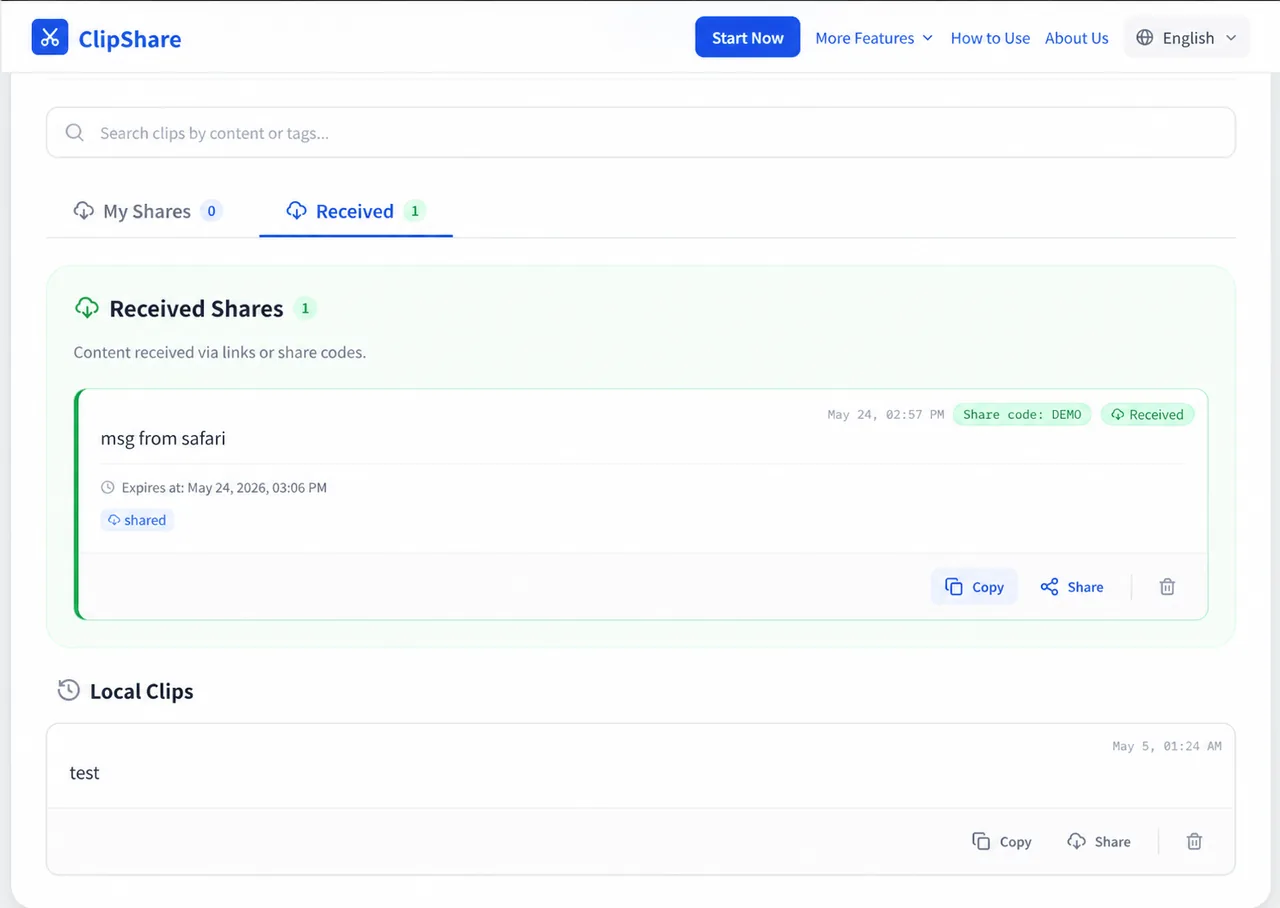
A real iPhone-to-Windows browser handoff result, received without AirDrop or account login. The displayed share code is a disabled demonstration value.
Case 2: Android to Mac or Windows
Android users face a different version of the same problem.
Android has nearby sharing tools, and Windows has its own device-linking options, but the workflow can still become awkward when you use:
- Android phone + MacBook
- Android phone + Windows laptop
- Samsung phone + office computer
- borrowed or managed desktop machine
Android to Mac is especially uneven because Mac does not receive Android shares as naturally as an iPhone receives AirDrop. Android to Windows can be easier in some setups, but it may still require pairing, app setup, account login, or the right permissions.
For one-off transfers, browser-based sharing avoids most of that setup:
- Open the tool on Android
- Add a photo, PDF, link, or text snippet
- Use the code, link, or QR code on Mac or Windows
- Copy or download the content
For a deeper Android-to-Mac comparison, read Android File Transfer for Mac.
What are people really asking for when they say "AirDrop alternative"?
Most users are not asking for the Apple brand name.
They are really asking for four capabilities:
- no ecosystem lock-in
- no heavy setup
- no account login
- immediate access on phone and computer
If a workflow gives you that, it solves the real problem even if it is not technically "AirDrop."
The usual alternatives all work, but each adds friction
It works, but it is too heavy for short-lived transfer:
- attachment overhead
- login required
- inbox clutter
- long-term records for something temporary
Cloud storage
Good for long-term storage, not always for short relay:
- account required
- sync delay
- permission management
- leftover files you need to clean later
Messaging apps
Very common, but often awkward:
- image compression
- files mixed into conversation history
- dependence on personal accounts
- more trace than the task really needs
USB cable
Reliable in fixed environments, but not always practical:
- wrong cable
- wrong port
- not convenient on the go
- too much overhead for one small transfer
Nearby sharing tools
They can work well inside a certain ecosystem, but often become awkward when:
- the devices do not match
- pairing is required
- setup is needed
- the device is temporary or borrowed
So the issue is not that nothing works.
It is that many workarounds do not feel as clean as the original AirDrop experience.
The more universal alternative: browser-based sharing
If your device mix changes often, the most stable common layer is usually not a system feature.
It is the browser.
That is why browser-based transfer has become such a practical AirDrop alternative.
A typical workflow looks like this:
- open the tool in your browser
- upload text, an image, or a small file
- get a share code, link, or QR code
- open it on the other device
- download or copy it immediately
The advantages are straightforward:
- no ecosystem lock-in
- no requirement to install the same app everywhere
- works across Windows, Android, iPhone, and Mac
- especially good for temporary transfers
Tools like ClipShare are built exactly around that logic.
If you want the broader explanation behind the browser approach, read Browser-Based File Sharing - How to Send Files Without Installing Any App.
Which users benefit most from an AirDrop alternative?
Windows users
Windows simply does not have official AirDrop.
If you need to move things between your PC, your phone, and other nearby devices, a browser-based workflow helps because:
- it does not depend on Windows-specific integration
- it does not require extra sync software
- it starts with a browser you already have
Android users
Android has its own sharing options, but the hard part is often not Android itself.
It is interoperability.
If the other device is:
- an iPhone
- a Windows PC
- a borrowed Mac
- a work computer
browser-based sharing is often much less frustrating than trying to line up ecosystems.
Mixed-device users
This is where the need becomes strongest.
Common real-world setups include:
- Android phone + Windows laptop
- iPhone + office Windows desktop
- MacBook + Android backup phone
- Android phone + MacBook
The more mixed your device stack is, the more valuable a universal entry point becomes.
What kinds of files are a good fit?
An AirDrop alternative like this works best for:
- text
- photos
- screenshots
- QR codes
- PDFs
- small documents
- small files
If your workflow is mostly image-based, also see How to Send Photos from a Phone to a Computer Without a Cable.
If it is more about lightweight general transfer, Share Files Between Devices Without Login covers the broader case.
For large video transfers, bulk backups, or long-term synchronization, specialized tools still make more sense.
Why does this feel more AirDrop-like than messaging yourself?
Because what people really miss about AirDrop is not just the fact that it transfers files.
It is the feeling of:
- fast
- lightweight
- not account-driven
- not designed for long-term storage
Browser-based sharing has a different technical implementation, but it can preserve those same practical advantages when it includes:
- no login
- automatic expiration
- QR code or share code entry
- cross-platform access
That is also why it overlaps so naturally with Temporary File Sharing Without Login: Fast Cross-Device File Transfer.
What about safety?
Convenient does not mean "send anything."
A better browser-based sharing service should give you:
- HTTPS transport
- temporary storage
- automatic expiration
- no unnecessary long-term retention
And you still need to judge the content itself:
- ordinary text, images, and small files are usually fine
- passwords, private keys, identity documents, or confidential business material should be treated very differently
For the broader safety boundary, read Is Online Clipboard Safe? What to Share and What to Avoid.
Frequently Asked Questions
Can you use AirDrop from iPhone to Windows?
No. AirDrop does not support Windows PCs. If you need to send something from iPhone to Windows, use another method such as Phone Link, cloud storage, a cable, or a browser-based transfer tool.
What is the easiest AirDrop alternative for iPhone to Windows PC?
For quick temporary transfers, the easiest option is usually browser-based sharing. Open the tool on iPhone, paste or upload the content, then open it on the Windows PC with a code, link, or QR code.
What is the easiest AirDrop alternative for Android to Mac?
For quick Android-to-Mac transfer, a browser-based tool is often simpler than cable utilities or cloud storage. Open it on Android, add the content, then open the share code, link, or QR code on the Mac.
What is the easiest AirDrop alternative for Android to Windows?
If you do not want to pair devices or install apps, browser-based sharing is a lightweight option. It works for text, links, images, PDFs, and small files as long as both devices can open a browser.
Can I transfer text, links, and small files without installing an app?
Yes. If both devices have a browser, ClipShare can move text, links, images, and small files with no app install and no account login.
Does Windows have AirDrop?
No. AirDrop is an Apple ecosystem feature, so Windows users need another cross-device sharing method.
Can Android use AirDrop directly?
No. Android needs a different sharing approach, and browser-based transfer is one of the most universal.
Can Windows and Android transfer files without installing an app?
Yes. As long as both devices have a browser, temporary transfer through a share code, link, or QR code is often enough.
Is this suitable for photos and PDFs?
Yes, for everyday lightweight transfer such as screenshots, photos, PDFs, and small documents.
Is browser-based sharing automatically safe?
No. It only makes the workflow lighter. Safety still depends on service design, device environment, and content sensitivity.
Conclusion
AirDrop is great, but it was never designed to be the answer for every device combination.
If you use iPhone with Windows, Android with Mac, Android with Windows, or any mixed-device setup, the more practical alternative is usually:
- no ecosystem dependency
- no account login
- no extra installation
- browser-based temporary sharing
For "I need this on the other device right now" moments, that is often closer to the experience people actually want than heavier workarounds.
Sources, test scope, and limits
Reviewed: July 26, 2026
What we checked
- Apple documents AirDrop as a nearby Apple-device workflow that requires Wi-Fi and Bluetooth; Personal Hotspot must be off. That makes it different from a browser relay that can bridge mixed operating systems.
- The practical choice is ecosystem and task size: AirDrop fits nearby Apple-to-Apple transfer, while ClipShare’s tested path fits temporary small-file relay across browsers.
- Test setup: On July 26, 2026, we checked ClipShare production in Google Chrome with synthetic data. A 188-byte
.txtfile created a four-character code, QR code, and link; a clean browser context showed the same file name and size. A 5 MB + 1 byte file was rejected before sharing. The dated test record and original screenshots cover ClipShare only.
What this review does not prove
This is a task-fit comparison, not an independent security certification or a benchmark of every competitor version. Product behavior, limits, pricing, and deployment options can change; check the linked official documentation before relying on a feature.
Primary sources
- Apple Support: How to use AirDrop — official device, radio, visibility, and transfer requirements.
Related Articles
- iPhone to Windows Transfer: 3 Ways to Send Text, Photos, and Files
- Android to Mac File Transfer: Five Practical Options
- Share Files Between Devices Without Login
- ClipShare vs Snapdrop vs LocalSend: Which File Transfer Tool Is Right for You?
- Browser-Based File Sharing - How to Send Files Without Installing Any App
- How to Send Photos from a Phone to a Computer Without a Cable
- How to Share Text Between a Phone and Computer
- How to Transfer Files Using QR Code (Fast & No App Required)
- How to Share Files Between Your Work Computer and Personal Laptop
Want to try first?
Open ClipShare and move something in a few seconds
Paste text, add an image, or upload a small file, then open it on another device with a share code, link, or QR code.