iPhone to Windows Transfer: 3 Ways to Send Text, Photos, and Files
Need to send text, photos, screenshots, or small files from iPhone to Windows? Compare Phone Link, iCloud for Web, and a no-login browser transfer flow.
In this guide
Why Is iPhone to Windows Transfer So Awkward?
If you own both an iPhone and a MacBook, you probably love the "Universal Clipboard" feature: copy on your phone, paste on your Mac. It's magic.
But the reality is, millions of users rely on the iPhone + Windows PC combo. When you need to transfer a verification code, a URL, a screenshot, a photo, or a small file from your phone to your computer, what do you usually do?
- Send it to yourself via WhatsApp/Telegram/Email.
- Open the app on your PC.
- Copy and paste.
This is tedious and breaks your flow.
Today, we'll introduce 3 efficient ways to solve this. The last one doesn't even require installing any app and works for text, images, and small files.
The same choice applies to Apple's newly announced iPhone 18 Pro and iPhone 18 Pro Max and iPhone Duo: use the official tools for large libraries, and a browser handoff for temporary text or small files.
Fast path
If you just need to move a code, link, screenshot, photo, or short note from iPhone to Windows right now, open ClipShare in your browser and use a temporary share code, link, or QR code.
Method 1: Phone Link (Official Microsoft Solution)
Microsoft's Phone Link is the most integrated solution available. It has recently been updated to support iOS significantly better.
How to Set It Up?
- On Windows: Search for "Phone Link" in the Start menu.
- On iPhone: Download the "Link to Windows" app from the App Store.
- Pairing: Scan the QR code on your PC screen with your iPhone and follow the instructions to pair via Bluetooth.
Pros & Cons
- Pros:
- Feature Rich: Besides clipboard, it syncs calls and notifications.
- Official Support: Deep system integration.
- Cons:
- High Requirements: Requires Windows 11 and Bluetooth.
- Connection Issues: Bluetooth connections can be flaky and drop often.
- Privacy: Requires access to contacts and notifications.
Method 2: iCloud for Web
If you live in the Apple ecosystem and use Apple Notes heavily, the web version of iCloud is a solid middle ground.
How to Use It?
- Go to icloud.com on your Windows browser and log in.
- Open the Notes web app.
- Copy text on your iPhone and paste it into a note.
- Wait for it to sync, then copy it from the web browser on your PC.
Pros & Cons
- Pros:
- No Extra App: Uses the native iOS Notes app.
- Rich Content: Supports formatting and images.
- Cons:
- Login Friction: Requires 2FA every time you login on a new session.
- Privacy risk: Logging into iCloud on a public computer may expose your photos, contacts, emails, and other private data. If you forget to sign out or the device records your login information, others may gain long-term access to your account, and malware on the public computer could also exploit it.
- Slow Sync: Depends on iCloud sync speed; not instant.
Method 3: ClipShare for Temporary Browser Handoffs
If you cannot install software, do not want to sign in, or are using a shared computer, ClipShare provides a low-setup option for one-off text, image, and small-file handoffs.
How Does It Work?
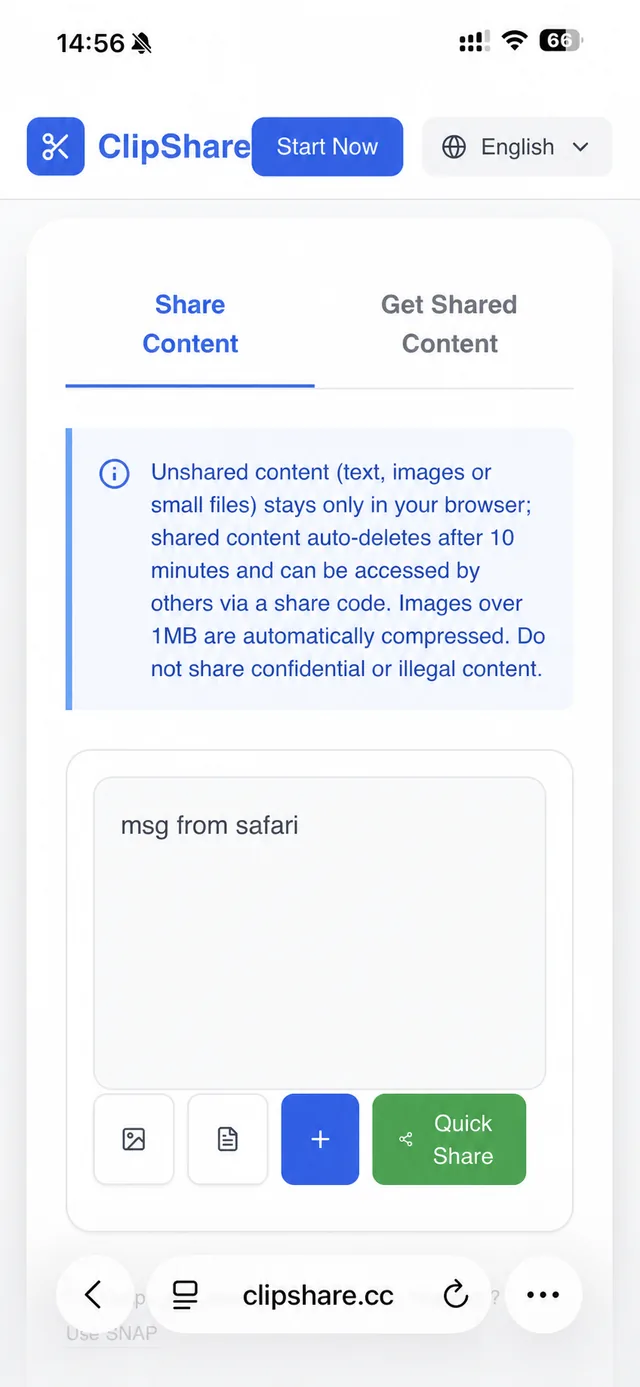
- Step 1: Open clipshare.cc on your iPhone.
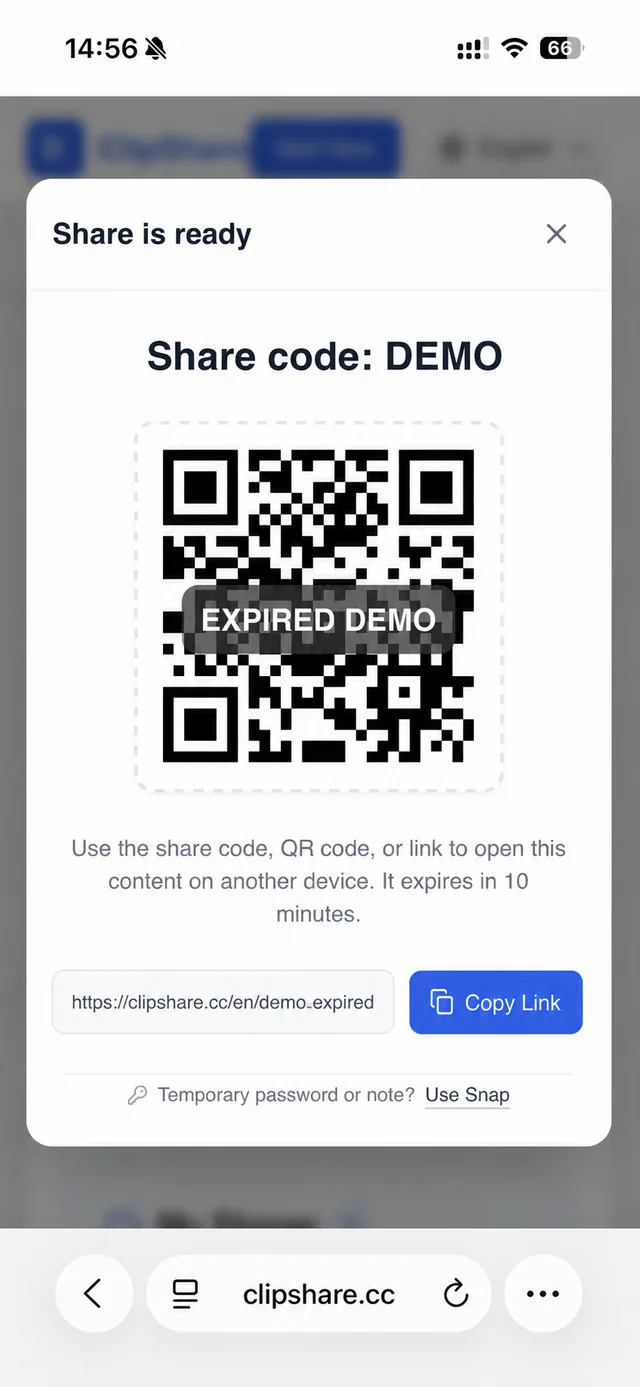
- Step 2: Paste text, add a photo, or choose a small file, then tap Quick Share. You'll get a temporary 4-character share code (for example,
A2CF), plus a link and QR code. - Step 3: On your Windows PC, open the same site, switch to Import Shared Clip, and enter that share code.
- Done: The content appears on your Windows computer, ready to copy or download.
The screenshots below come from a real English-language browser test. The share code and QR code are disabled demonstration values. This test did not use iPhone Duo hardware.
Step 1: Paste the text on iPhone
Step 2: Generate a temporary share
Step 3: Retrieve and copy the text on Windows
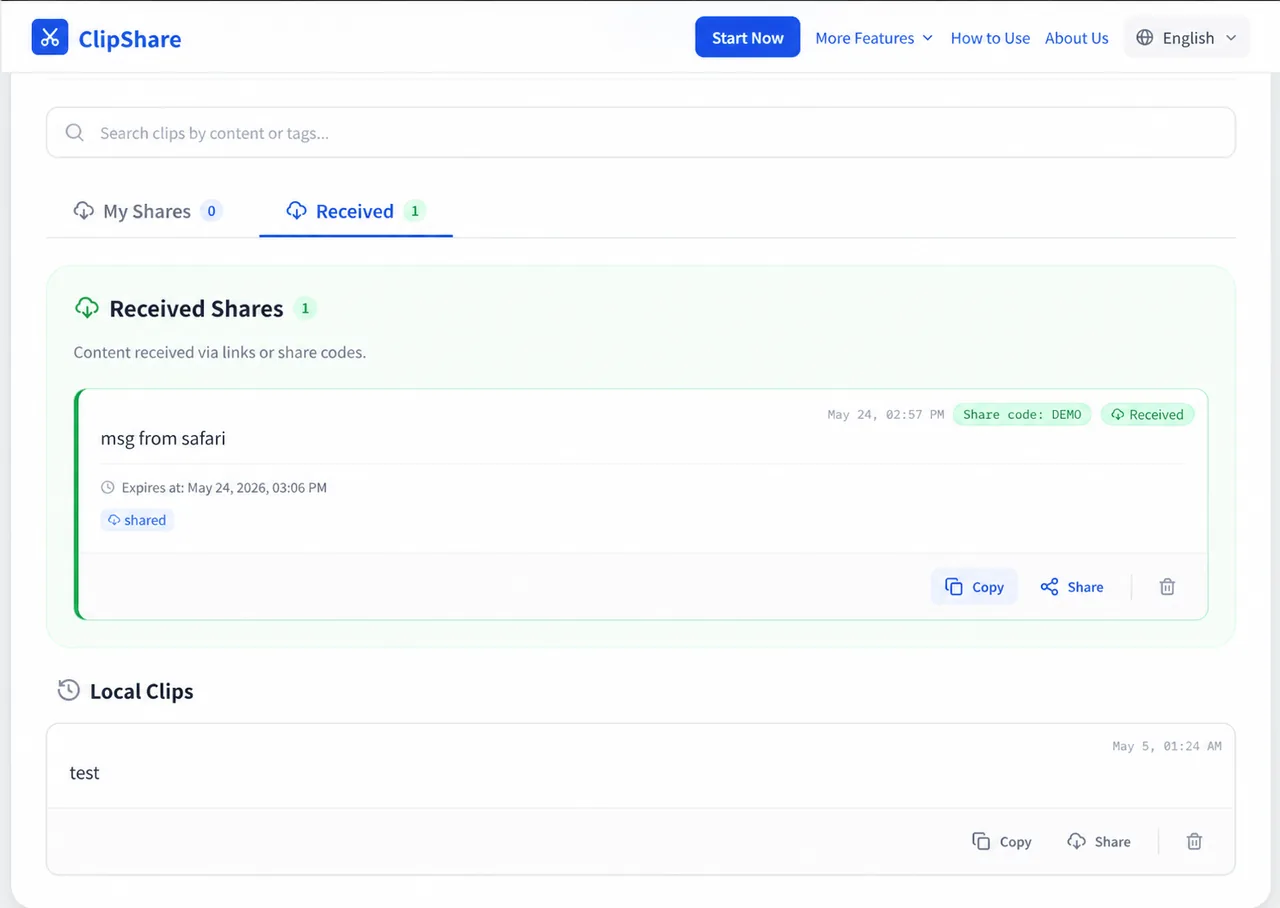
Tested iPhone-to-Windows text handoff: the message entered in Safari is available in the Windows browser without installing an app or signing into a personal account.
This method works especially well for quick tasks like:
- moving a verification code from iPhone to Windows
- sending a link or address from your phone to your PC
- opening a screenshot from iPhone on a Windows browser
- sending a photo from iPhone to a Windows document or upload form
- moving a PDF or small file without signing into cloud storage
- using a work or public computer without logging into personal accounts
If you are looking for a broader file-transfer answer, read AirDrop Alternative for iPhone to Windows PC. It covers why AirDrop does not work on Windows and when a browser-based transfer flow is the lighter option.
Core Advantages
- Zero Install & Zero Login: Just open the link and go.
- Cross-Platform: Works on iPhone, Windows, Android, Linux, Mac, and even Smart TVs.
- Temporary Sharing:
- Short-Lived Storage: Shared content automatically expires after 10 minutes.
- No Long-Term Account Library: The workflow is intended for quick handoff, not permanent storage.
- Multimedia: Supports text, images, and small files.
If your main use case is text only, read How to Share Text Between a Phone and Computer. If you're often moving screenshots or photos, go to How to Send Photos from a Phone to a Computer Without a Cable.
Summary: Which One is For You?
| Scenario | Recommendation |
|---|---|
| Daily use, need calls/SMS | Phone Link |
| Heavy Apple Notes user | iCloud Web |
| Need a low-setup temporary handoff | ClipShare |
| Public/Office Computer | ClipShare (Safest) |
Stop emailing yourself today. Upgrade your cross-device workflow now!
Choose the next step based on your scenario
Frequently Asked Questions
Can iPhone copy and paste directly to Windows?
Not natively in the same way that iPhone and Mac support Universal Clipboard. On Windows, you usually need a bridge such as Phone Link, iCloud on the web, or a browser-based transfer tool.
What is the fastest way to send a verification code from iPhone to Windows?
For one-off transfers, the fastest method is usually a browser-based tool that gives you a temporary code. You avoid app installs, account login, and chat history clutter.
Do I need to install an app to move text from iPhone to Windows?
No. If you only need to move short text, links, or images occasionally, a browser-based method is enough. App-based solutions make more sense when you want persistent device pairing and extra features like notifications.
How do I send iPhone photos to Windows without a cable?
For a small number of photos or screenshots, open a browser transfer tool on iPhone, add the image, create a temporary share code or QR code, then open it on Windows and download the image. For a full photo library backup, use a cable, iCloud, or another photo-management workflow.
Can I send a small file from iPhone to Windows without iCloud?
Yes. A no-login browser transfer flow can handle temporary small files. It is best for one-off handoffs, not permanent storage or large archive transfers.
What should I use on a public or office computer?
Avoid logging into personal messaging apps or iCloud on shared devices if you can. A temporary browser-based sharing flow is usually safer because it does not require persistent account access.
More Cross-Device Tips
If you are interested in specific scenarios, check out these guides:
- General Tips: Copying and Pasting Between Different Systems Is a Hassle? A More Universal Solution
- File Sharing: ClipShare Now Supports Small File Sharing
- Text Sharing: How to Share Text Between a Phone and Computer
- Privacy & Security: ClipShare Privacy & Security FAQ
You may also want to read:
- Browser-Based File Sharing - Send Files Without Installing Any App
- Share Files Between Devices Without Login
- How to Share Text Between a Phone and Computer
- How to Send Photos from a Phone to a Computer Without a Cable
- How to Share Files Between Your Work Computer and Personal Laptop
- AirDrop Alternative for iPhone to Windows PC
- Copying and Pasting Between Different Systems Is a Hassle? A More Universal Solution
Want to try first?
Open ClipShare and move something in a few seconds
Paste text, add an image, or upload a small file, then open it on another device with a share code, link, or QR code.