Snapdrop vs LocalSend: Which File Transfer Tool Should You Use?
Compare Snapdrop vs LocalSend by network, installation, file size, and browser access. See when each local transfer tool wins and when ClipShare is simpler.
In this guide
If you are comparing Snapdrop vs LocalSend, the deciding factor is usually not a feature count. It is whether your devices can use the same local-transfer workflow right now.
Fast answer: choose LocalSend for repeated larger transfers between devices you control on the same network. Choose Snapdrop for quick browser-based local transfer when same-network discovery works. Choose ClipShare when you cannot install an app, the devices are on different networks, or you only need a short-lived code, link, or QR handoff.
Fast answer
Choose by network, installation, and file size
LocalSend
Best for frequent or larger local transfers when app installation is fine.
Snapdrop
Best for lightweight browser-based transfer when local discovery works.
ClipShare
Best for temporary small handoffs when you need a browser, code, link, or QR flow.
The important split is this:
- LocalSend vs Snapdrop is mainly a same-network choice.
- ClipShare vs LocalSend/Snapdrop is mainly a no-install, different-network, or temporary-sharing choice.
LocalSend and Snapdrop are both genuinely useful tools. Their typical advantage is local transfer between nearby devices. ClipShare serves a different moment: moving text, images, or small files through a temporary browser flow when the environment makes local discovery inconvenient.
This guide compares Snapdrop, LocalSend, and ClipShare by scenario, so you can choose the workflow that matches the actual transfer rather than forcing one tool to cover every situation.
Snapdrop vs LocalSend vs ClipShare at a glance
If what you like about LocalSend or Snapdrop is low-friction transfer, ask:
Do I need a local transfer for larger files, or a temporary handoff that opens in a browser right now?
If both devices are on the same Wi-Fi and you transfer larger files often, LocalSend is hard to beat.
If you need:
- no installation
- browser access on both sides
- transfer across different networks
- temporary sharing with automatic expiry
then a temporary browser handoff is usually the better fit. If your question is specifically "what can I use when I cannot install LocalSend?", see LocalSend Alternative: No-Install Sharing Across Different Networks.
What each tool is built for
Snapdrop
Snapdrop is a browser-based local sharing tool inspired by AirDrop. Its classic workflow is built around nearby devices discovering each other through a browser. No native app installation is needed for that web workflow.
It is elegant for what it does. Its practical fit depends on local discovery being available in your network environment.
LocalSend
LocalSend is an open-source app designed for transfer over a local network. It supports Windows, macOS, Linux, Android, and iOS, and is a strong fit for repeated local transfers or larger files.
Installing the app on the sending and receiving devices is part of its standard workflow.
ClipShare
ClipShare is a browser-based temporary sharing tool that works over the internet rather than a local network. You upload content on one device, get a share code or QR code, and retrieve it on any other device anywhere.
No installation. No shared network required. Content expires automatically.
Side-by-side comparison
| Question | ClipShare | Snapdrop | LocalSend |
|---|---|---|---|
| Primary workflow | Temporary browser handoff | Browser-based local transfer | App-based local transfer |
| Same local-network discovery needed for the typical flow | No | Yes | Yes |
| Installation required | No | No for the web flow | Yes |
| Different-network handoff | Built for it | Not the primary workflow | Not the primary workflow |
| Account required | No | No | No |
| Content fit | Text, images, small files | Local files | Local files, including larger transfers |
| Temporary expiry in this workflow | Yes (10 min) | Not its main purpose | Not its main purpose |
| Best for | Temporary or mixed-network small handoff | Same-network browser transfer | Frequent local larger-file transfer |
Where Snapdrop and LocalSend win
Large file transfers on the same network
If you are moving a 2GB video from your laptop to your phone while both are on your home Wi-Fi, a local-transfer workflow is generally the better fit. LocalSend is designed for that case; Snapdrop can suit a lighter browser handoff when discovery works. A local transfer avoids uploading the file through an internet sharing service.
No internet dependency
LocalSend explicitly supports local transfers without internet access. If you are in a location with poor connectivity but have a working local network, it is a strong fit.
Frequent transfers between fixed devices
If you regularly transfer files between the same two devices on the same network, LocalSend's native app experience is smoother than opening a browser every time.
When LocalSend is better
LocalSend is better when your workflow is stable:
- the same devices transfer files often
- app installation is not a problem
- both devices are nearby
- larger files matter more than temporary sharing
In that situation, LocalSend is not just "good enough." It is often the best option.
Where ClipShare wins
When a temporary browser handoff is better
A browser-based alternative is better when the friction comes from the environment rather than the transfer itself.
That includes cases like:
- a work computer where installation is blocked
- a borrowed laptop
- a phone on mobile data and a laptop on office Wi-Fi
- sending something to another person who is not physically present
This is exactly where a local-transfer workflow becomes inconvenient, and where ClipShare starts making more sense.
The screenshot below documents a real iPhone-to-Windows browser handoff. It demonstrates the receiving experience for temporary text sharing; it is not a speed benchmark against LocalSend or Snapdrop.
Tested browser handoff: temporary text received on Windows
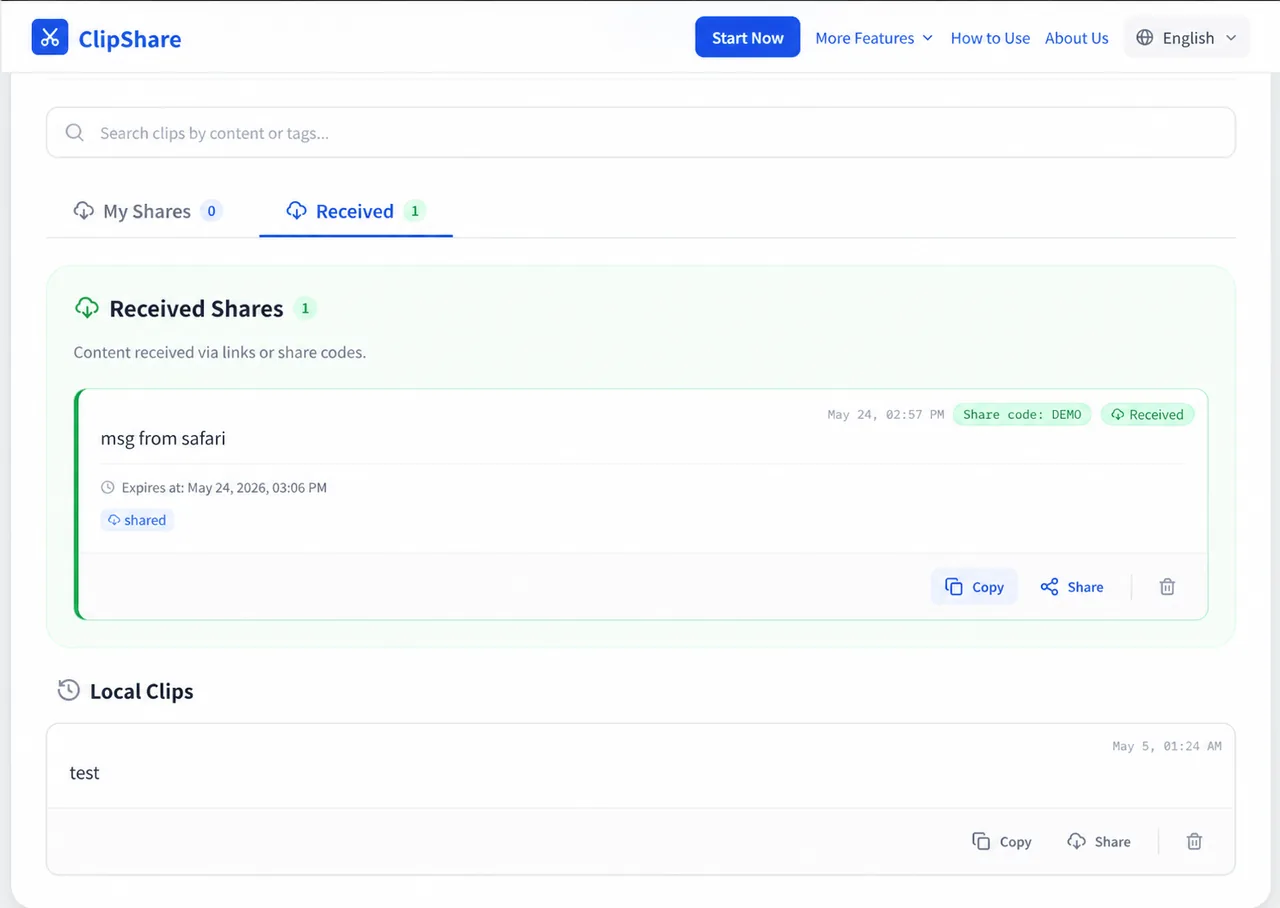
Real tested workflow: content created on an iPhone is retrieved in a Windows browser through a temporary share. The displayed share code is a disabled demonstration value.
Devices are not on the same network
This is a common real-world scenario where their typical local-discovery workflow is not the right fit.
Examples:
- your phone is on mobile data, your laptop is on office Wi-Fi
- you want to send something to a colleague in another building
- you are at a café and your devices are on different networks
- you want to send a file to someone in another city
For these handoffs, a temporary browser workflow avoids requiring local visibility between devices.
This is the same cross-network problem covered in AirDrop Alternative for Windows and Android — the moment you leave a single shared network, you need a different approach.
No installation on the receiving device
Snapdrop's classic web workflow requires no native app installation, but it depends on local discovery. LocalSend's standard workflow uses an installed app on the devices involved.
ClipShare requires nothing on either device beyond a browser. This matters when:
- the other person has not installed anything
- you are using a borrowed or work computer
- you want to send something to someone who just needs to open a link
For work computer scenarios specifically, How to Share Files Between Your Work Computer and Personal Laptop covers why no-install matters in restricted environments.
Temporary content that should not persist
Local-transfer workflows are designed to deliver a file to the receiving device; they are not primarily a short-lived content-expiry flow.
ClipShare content expires after 10 minutes. For temporary handoffs — a verification code, a screenshot you only need once, a link — that automatic cleanup is often exactly what you want.
This is the core idea behind Temporary File Sharing Without Login: the transfer ends when the task ends.
Sharing with someone you do not know well
If you want to send something to a stranger, a new contact, or someone you just met, asking them to install LocalSend or join your network is awkward.
A share code or QR code they can open in any browser is much lower friction. That scenario is covered in How to Share Files with Strangers Safely.
The network dependency problem in practice
The "same Wi-Fi" requirement sounds minor until you hit it in real life.
Common situations where it breaks down:
Home vs. office: Your phone is on home Wi-Fi, your work laptop is on a VPN or corporate network. Snapdrop sees nothing.
Mobile data: One device is on cellular, the other is on Wi-Fi. No local discovery possible.
Public networks: Many public Wi-Fi networks block device-to-device communication for security reasons. Snapdrop may not work even when both devices appear to be on the same network.
Different buildings: You and a colleague are both in the same company but on different floors or network segments. Local discovery fails.
Sending to someone else: The other person is not physically present. Local transfer is not an option at all.
In all of these cases, a browser-based handoff is often the more practical path.
Which tool fits which scenario
Use Snapdrop when:
- both devices are on the same Wi-Fi right now
- you want zero installation on both sides
- the file is larger than ClipShare's limit
- you do not need the content to expire
Use LocalSend when:
- you transfer files locally on a regular basis
- you need to move large files (videos, archives)
- you want a native app experience
- you are comfortable installing software on all devices
Use ClipShare when:
- the devices are on different networks
- you cannot or do not want to install anything
- the content is temporary and should expire
- you are sharing with someone who is not physically present
- you are on a work or public computer
- you want to share via QR code or a short code
For a broader look at when browser-based transfer makes sense, Browser-Based File Sharing - How to Send Files Without Installing Any App covers the full picture.
A practical note on local discovery
Browser-based local transfer depends on devices being able to discover and connect to each other. Guest Wi-Fi, company segmentation, VPNs, or device-isolation settings can interfere with that workflow.
That does not make Snapdrop a poor choice on a cooperative local network. It means that when local visibility is uncertain, a link, code, or QR-based temporary handoff can be easier to complete.
Frequently Asked Questions
Snapdrop vs LocalSend: which one is better?
LocalSend is usually better for repeated local transfers and larger files because it is a native app built for local-network file movement. Snapdrop is usually better when you want a quick browser-to-browser transfer and both devices can discover each other on the same local network.
Is ClipShare a replacement for Snapdrop or LocalSend?
Not completely. ClipShare is better understood as a browser-based fallback for no-install, mixed-network, temporary handoffs. Keep Snapdrop or LocalSend for local file movement, and use ClipShare when the transfer needs a code, link, or QR entry point instead.
Is this a security comparison?
No. This article compares transfer workflows, not a security audit. For sensitive or irreplaceable information, use a controlled security workflow rather than choosing only by convenience.
Does LocalSend work without internet?
Yes. LocalSend uses only your local network and does not require internet access.
Can ClipShare transfer large files?
ClipShare is optimized for small files, text, images, and documents. For large video files or bulk transfers on a working local network, a local-transfer workflow such as LocalSend is generally the better fit.
What if I need both local and remote transfer?
Use the right tool for each situation. LocalSend or Snapdrop for large local transfers, ClipShare for remote or cross-network transfers. They are not mutually exclusive.
What if local device discovery does not work?
If the local browser or app workflow cannot see the other device, use a workflow designed around an explicit access path, such as a link, short code, or QR code. For small temporary content, that is where ClipShare fits.
Conclusion
Snapdrop and LocalSend are good tools for what they do. If both your devices are visible on a local network and you need to move larger files, a local-transfer workflow is usually the right starting point.
But "same network" is a real constraint that breaks down more often than people expect.
ClipShare fills the gap: when the devices are not on the same network, when you cannot install anything, when the content should expire, or when the other person is not physically present.
The best setup for most people is not choosing one tool forever. It is knowing which one fits the moment.
More Transfer Guides
- AirDrop alternatives: AirDrop Alternative for Windows and Android
- Work environments: How to Share Files Between Your Work Computer and Personal Laptop
- Temporary sharing: Temporary File Sharing Without Login
- Sharing with strangers: How to Share Files with Strangers Safely
- Google Drive comparison: ClipShare vs Google Drive: Which Is Better for Quick File Transfer?
You may also want to read:
- Browser-Based File Sharing - Send Files Without Installing Any App
- Share Files Between Devices Without Login
- How to Transfer Files Using QR Code (Fast & No App Required)
- Android to Mac File Transfer: 3 Fast Methods
- iPhone to Windows Transfer: 3 Ways to Send Text, Photos, and Files
- Is Online Clipboard Safe? What to Share and What to Avoid
- Complete ClipShare Guide: Share Text, Images, and Small Files Between Devices
Want to try first?
Open ClipShare and move something in a few seconds
Paste text, add an image, or upload a small file, then open it on another device with a share code, link, or QR code.